Microsoft Word Resume Formatting for Beginners
Learn simple Microsoft Word formatting skills for creating a clean resume, school document, or professional letter.

Jadox is a web developer and digital skills educator who creates beginner-friendly guides for students, job seekers, and workers learning practical computer skills.
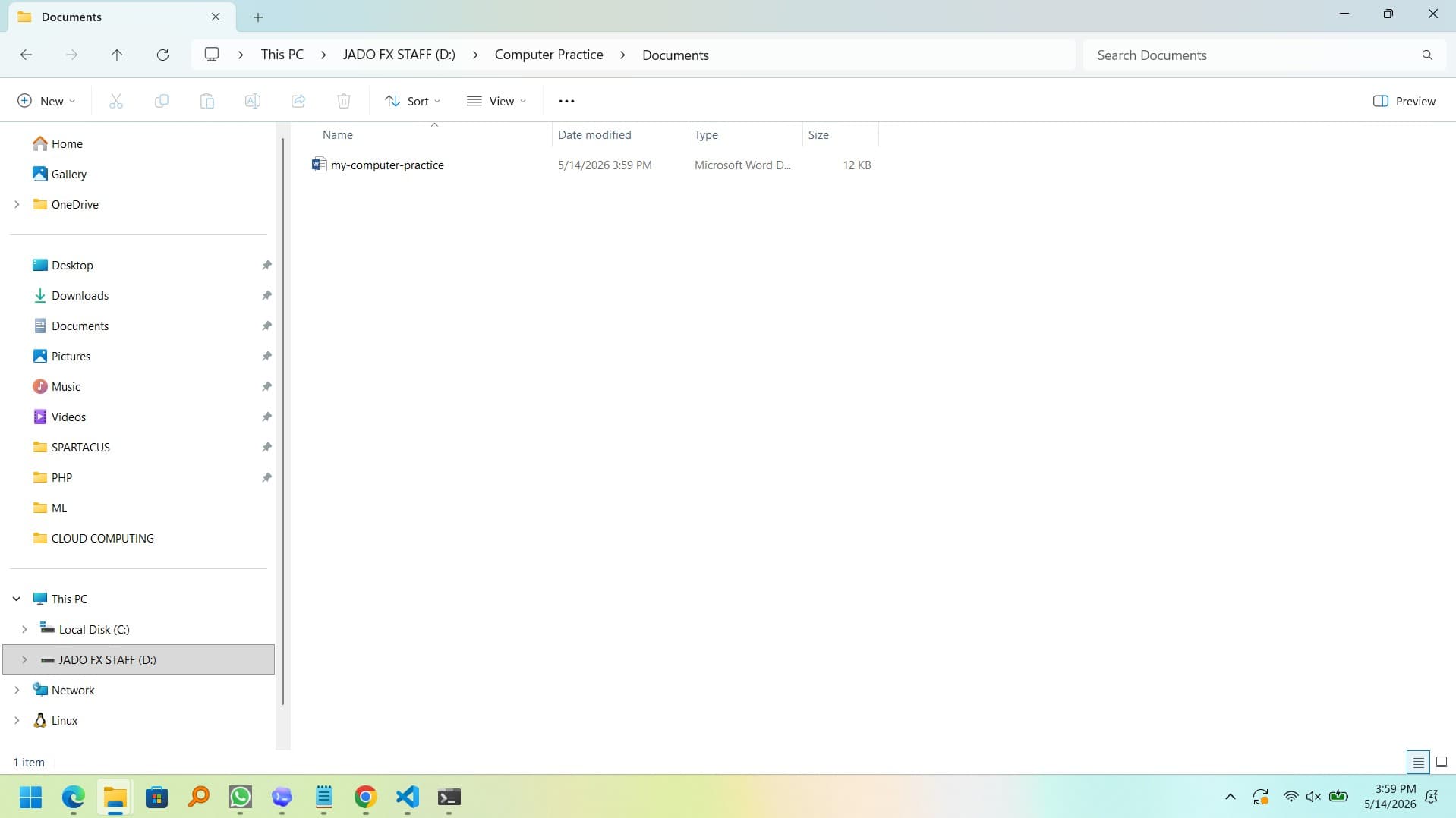
Microsoft Word is still one of the most useful computer skills for job seekers, students, office workers, and anyone who needs to create clean documents.
If you are making a resume, you do not need fancy design. You need a document that is easy to read, easy to edit, and easy for employers to scan.
1. Use a simple font
Choose a clean font such as:
- Arial
- Calibri
- Aptos
- Times New Roman
Avoid decorative fonts for resumes. They can look unprofessional and may be harder to read.
2. Use consistent font sizes
A simple resume can use:
- Name: 18 to 22 pt
- Section headings: 12 to 14 pt
- Body text: 10 to 12 pt
Do not use too many sizes. Consistency makes the document look organized.
3. Use bold for headings
Use bold text for sections like:
- Summary
- Skills
- Experience
- Education
- Certificates
Bold headings help the reader scan the page quickly.
4. Use bullet points
Bullet points make experience easier to read.
Weak example:
I answered emails and helped customers and used Excel.
Better example:
- Answered customer emails politely and clearly
- Updated simple Excel records
- Organized files and documents for daily work
5. Keep spacing clean
Too much spacing wastes space. Too little spacing makes the document hard to read.
Use spacing between sections, but keep related details close together.
6. Save as PDF
When your resume is finished, save or export it as a PDF.
PDF is useful because:
- The layout stays stable
- The file opens on most devices
- The document looks more professional
Keep an editable Word version too, so you can update it later.
7. Name your file clearly
Use a file name like:
FirstName-LastName-Resume.pdf
Avoid names like:
new resume final final.pdfdocument1.pdfcv latest updated real.pdf
Clear file names are part of professional computer skills.
8. Add a clean skills section
Your skills section should be honest and specific.
Example:
Computer Skills: Microsoft Word, Microsoft Excel, Google Docs, email communication, file management, PDF handling, online research.
If you need help choosing skills, use the Resume Skills Builder.
Practice task
Open a blank Word document and create:
- A heading with your name
- A short summary
- A skills section
- Three bullet points
- A PDF export
This small exercise builds real Microsoft Office confidence.
Keep learning
Practice task
- Create a folder named Work Practice.
- Create three subfolders: Documents, Images, Downloads.
- Open Google Docs or Microsoft Word.
- Write a short paragraph about yourself.
- Save the file inside Documents.
Topics
Frequently Asked Questions
What are basic computer skills?
Basic computer skills include typing, using a mouse and keyboard, managing files and folders, browsing the web, using email, and working with simple documents or spreadsheets.
What computer skills should I put on my resume?
Add skills that match the job, such as Microsoft Word, Excel, Outlook, file management, data entry, online research, video meetings, and cloud storage.
Can I learn computer skills without a course?
Yes. You can learn computer skills with free guides and steady practice, especially when you use real tasks like creating folders, writing documents, and sending emails.
How long does it take to learn basic computer skills?
Many beginners can learn the basics in a few weeks with regular practice, then improve through daily use at school, work, or home.
Are Microsoft Office skills still important?
Yes. Microsoft Word, Excel, PowerPoint, and Outlook are still useful for office work, admin roles, teaching, sales, data entry, and many entry-level jobs.