Keyboard Shortcuts Every Beginner Should Know
Learn the most useful keyboard shortcuts for beginners with practical tasks for copying, pasting, saving, undoing, switching windows, and working faster.

Jadox is a web developer and digital skills educator who creates beginner-friendly guides for students, job seekers, and workers learning practical computer skills.

Keyboard Shortcuts Every Beginner Should Know
Many beginners use the mouse for everything.
That is okay when you are starting, but it can make you slow. Simple keyboard shortcuts can help you copy text, paste text, save files, undo mistakes, and move between open windows faster.
You do not need to memorize 100 shortcuts. Start with a few shortcuts you will use every day.
In this lesson, you will practice the most useful keyboard shortcuts for beginners using real tasks.
By the end of this guide, you should be able to:
- Copy and paste text
- Cut and move text
- Undo mistakes
- Save a document quickly
- Select all text
- Switch between open windows
- Find words in a document or webpage
- Refresh a webpage
- Open a new browser tab
- Close a tab safely
If you are still learning basic computer tasks, start with Basic Computer Skills for Beginners.
 Keyboard shortcuts help beginners work faster without depending on the mouse for every task.
Who This Lesson Is For
This lesson is for you if:
- You are new to computers
- You use the mouse for everything
- You want to type and edit faster
- You want to work better in Word, Google Docs, Excel, or browsers
- You want to improve your computer confidence
- You are preparing for school, office work, or job applications
You do not need advanced computer knowledge. You only need a keyboard and time to practice.
Tools You Need
To practice this lesson, you need:
- A computer or laptop
- Microsoft Word or Google Docs
- A web browser like Chrome, Edge, or Firefox
- 20 to 30 minutes of practice time
You can practice most shortcuts even without internet.
Quick Shortcut List for Beginners
Here are the shortcuts you should learn first.
| Shortcut | What It Does |
|---|---|
| Ctrl + C | Copy |
| Ctrl + V | Paste |
| Ctrl + X | Cut |
| Ctrl + Z | Undo |
| Ctrl + Y | Redo |
| Ctrl + S | Save |
| Ctrl + A | Select all |
| Ctrl + F | Find/search |
| Ctrl + P | |
| Alt + Tab | Switch between open windows |
| Ctrl + T | Open new browser tab |
| Ctrl + W | Close current tab |
| Ctrl + R | Refresh page |
| Ctrl + B | Bold text |
| Ctrl + I | Italic text |
| Ctrl + U | Underline text |
On Mac computers, many shortcuts use Command instead of Ctrl.
Example:
Windows: Ctrl + C
Mac: Command + C
Task 1: Copy and Paste Text
Copy and paste is one of the most common computer shortcuts.
You use it when you want to duplicate text without typing it again.
Shortcut
Ctrl + C = Copy
Ctrl + V = Paste
What to do
- Open Microsoft Word or Google Docs.
- Type this sentence:
I am learning keyboard shortcuts to work faster.
- Select the sentence.
- Press Ctrl + C to copy it.
- Go to the next line.
- Press Ctrl + V to paste it.
Your document should now show the sentence two times.
Copy and paste helps you repeat text without typing it again.
What you learned
You learned how to copy and paste text using the keyboard.
Why this matters
Copy and paste is useful when working with documents, emails, forms, reports, and online information.
Task 2: Cut and Move Text
Cut is different from copy.
Copy duplicates text. Cut removes text from one place and allows you to move it somewhere else.
Shortcut
Ctrl + X = Cut
Ctrl + V = Paste
What to do
- Type these three lines in your document:
My name is Jadox.
I am learning computer skills.
I want to work faster.
- Select the third line:
I want to work faster.
- Press Ctrl + X.
- Click above the first line.
- Press Ctrl + V.
Now the sentence has moved to another position.
What you learned
You learned how to move text without retyping it.
Why this matters
Cut and paste helps when editing CVs, reports, assignments, and emails.
If you are learning document writing, read Basic Microsoft Word Skills Every Beginner Needs.
Task 3: Undo a Mistake
Every beginner makes mistakes. The good thing is that you can undo many mistakes quickly.
Shortcut
Ctrl + Z = Undo
What to do
- Type this sentence:
This is my practice document.
- Delete the sentence.
- Press Ctrl + Z.
The sentence should come back.
What you learned
You learned how to reverse a mistake.
Why this matters
Undo helps you feel less afraid when working on a computer. If you delete something by mistake, try Ctrl + Z first.
Task 4: Redo an Action
Redo brings back an action after you undo it.
Shortcut
Ctrl + Y = Redo
What to do
- Type this sentence:
I am practicing shortcuts.
- Press Ctrl + Z to undo it.
- Press Ctrl + Y to redo it.
The sentence should appear again.
What you learned
You learned how to redo an action after undoing it.
Why this matters
Redo is useful when editing documents and you change your mind.
Task 5: Save Your Work Quickly
Many beginners lose work because they forget to save.
Use Ctrl + S often.
Shortcut
Ctrl + S = Save
What to do
- Open a document.
- Type a short paragraph.
- Press Ctrl + S.
- If the computer asks for a file name, save it as:
shortcut-practice.docx
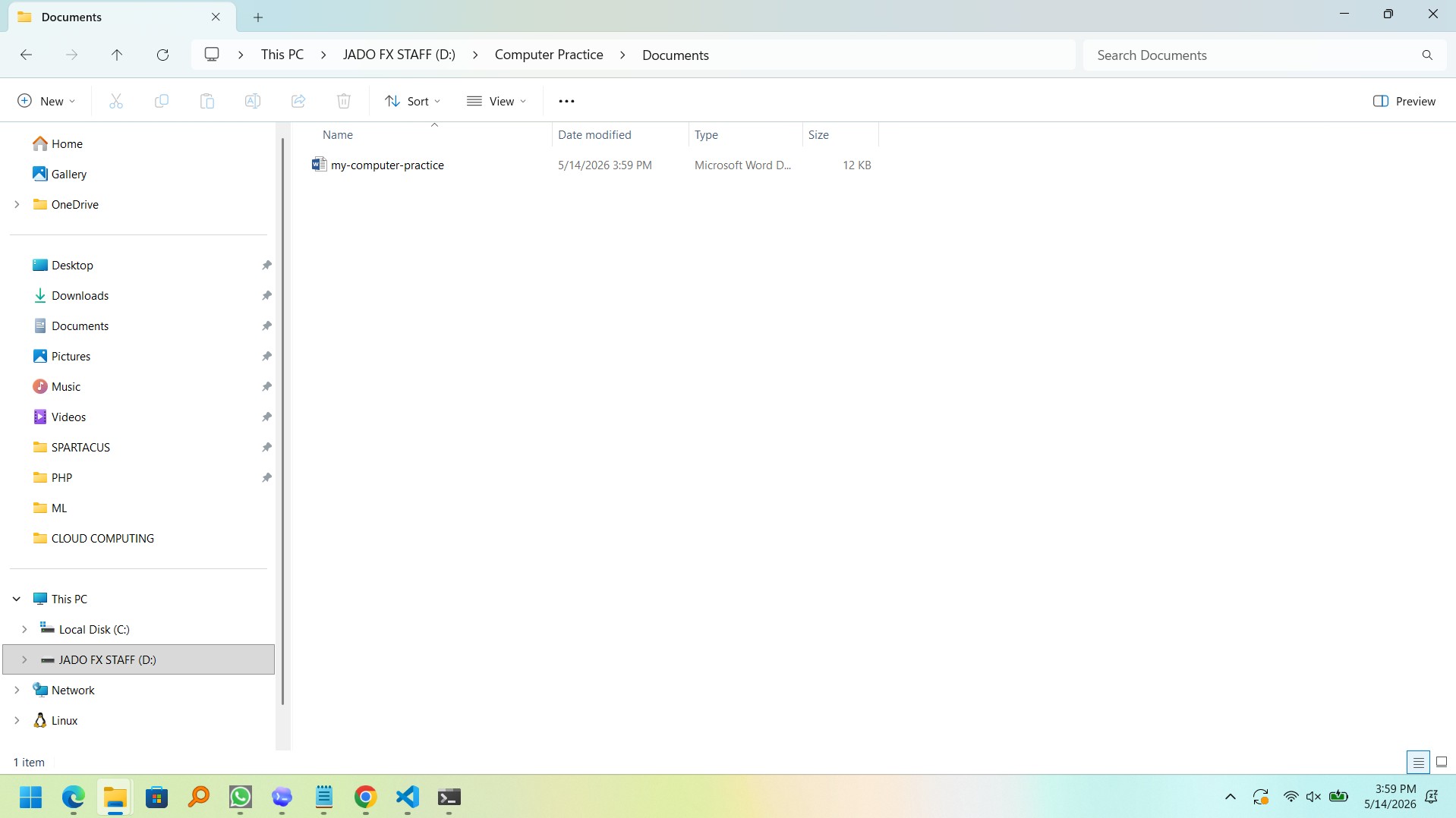 Saving often helps you avoid losing your work.
What you learned
You learned how to save work quickly.
Why this matters
When writing a CV, report, or school assignment, saving often protects your work.
Task 6: Select All Text
Select all helps you highlight everything in a document, text box, or webpage area.
Shortcut
Ctrl + A = Select all
What to do
- Type five lines of text in your document.
- Press Ctrl + A.
- All the text should be selected.
You can now copy it, delete it, change font size, or format it.
What you learned
You learned how to select all text quickly.
Why this matters
Select all is useful when editing full documents, copying notes, or formatting text.
Task 7: Find a Word Quickly
Find helps you search inside a document or webpage.
Shortcut
Ctrl + F = Find
What to do
- Open a document or webpage.
- Press Ctrl + F.
- Type a word you want to find, for example:
computer
- The computer will show where that word appears.
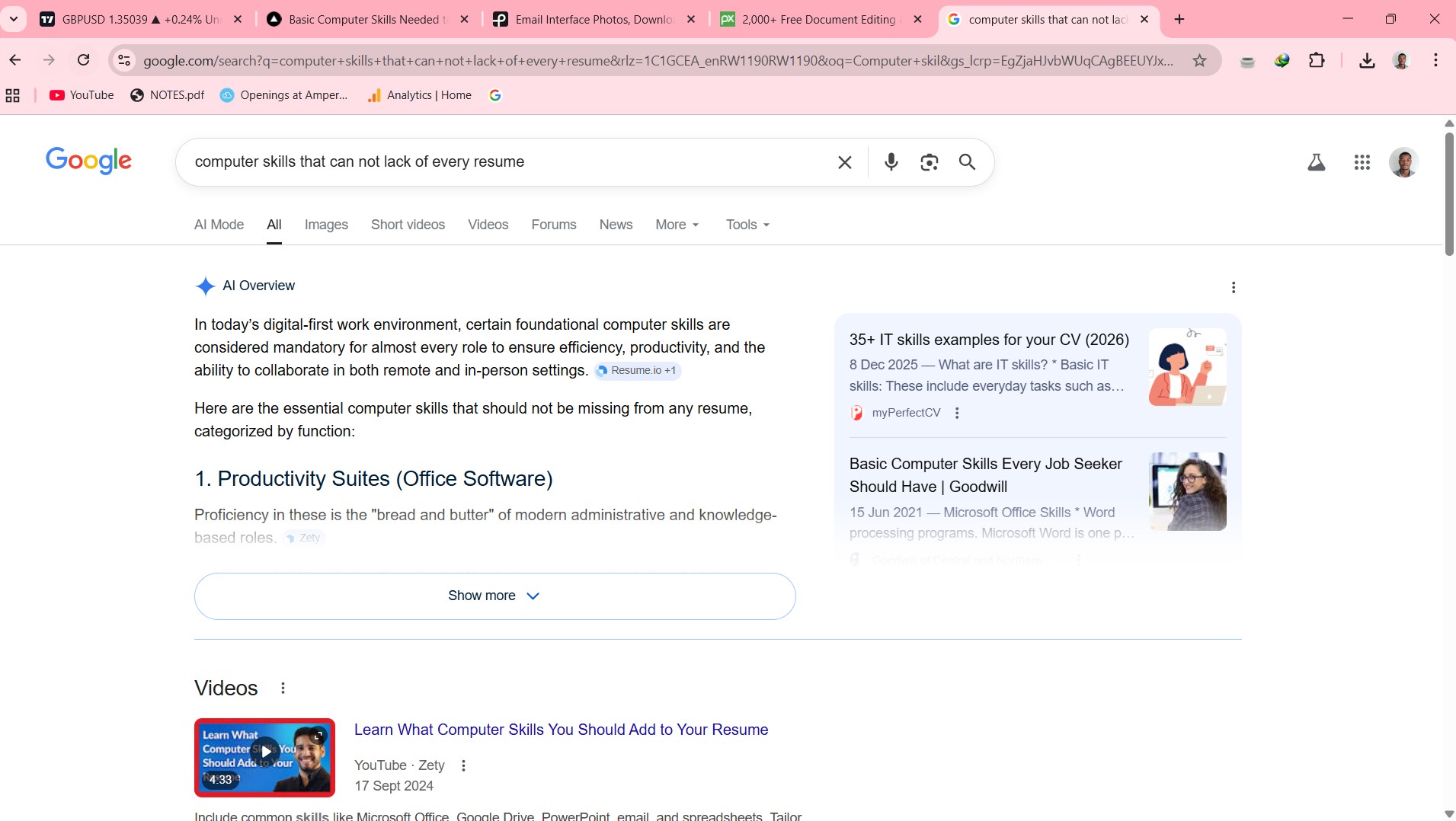 Ctrl + F helps you find words quickly inside long documents or webpages.
What you learned
You learned how to search inside a page or document.
Why this matters
This is very useful when reading long articles, PDFs, notes, or job descriptions.
If you want to search better online, read How to Search on Google Better: Beginner Tips.
Task 8: Switch Between Open Windows
When you open many programs, you can switch between them without using the mouse.
Shortcut
Alt + Tab = Switch between open windows
What to do
- Open your browser.
- Open Microsoft Word or Google Docs.
- Hold Alt.
- Press Tab once.
- Release both keys.
You should move from one open window to another.
What you learned
You learned how to move between programs faster.
Why this matters
At work, you may need to move between email, Word, Excel, browser, and other tools.
Task 9: Open and Close Browser Tabs
Browser tabs help you open many pages in one browser window.
Shortcuts
Ctrl + T = Open new tab
Ctrl + W = Close current tab
What to do
- Open your browser.
- Press Ctrl + T.
- A new tab should open.
- Search for:
basic computer skills
- Press Ctrl + W to close the tab.
What you learned
You learned how to open and close browser tabs quickly.
Why this matters
This helps you search faster, compare information, and keep your browser organized.
Task 10: Refresh a Webpage
Sometimes a webpage does not load well. Refresh reloads the page.
Shortcut
Ctrl + R = Refresh
What to do
- Open any webpage.
- Press Ctrl + R.
- The page should reload.
What you learned
You learned how to reload a webpage.
Why this matters
Refresh can help when a page is slow, outdated, or not showing recent changes.
Task 11: Bold, Italic, and Underline Text
These shortcuts help when formatting documents.
Shortcuts
| Shortcut | What It Does |
|---|---|
| Ctrl + B | Bold |
| Ctrl + I | Italic |
| Ctrl + U | Underline |
What to do
- Type this sentence:
Keyboard shortcuts help me work faster.
- Select the word:
faster
- Press Ctrl + B to make it bold.
- Select another word and press Ctrl + I.
- Select another word and press Ctrl + U.
What you learned
You learned how to format text without using the toolbar.
Why this matters
These shortcuts are useful when creating CVs, reports, letters, and assignments.
Beginner Shortcut Practice Table
Use this table to practice daily.
| Day | Shortcuts to Practice | Task |
|---|---|---|
| Day 1 | Ctrl + C, Ctrl + V | Copy and paste five sentences |
| Day 2 | Ctrl + X, Ctrl + V | Move three lines of text |
| Day 3 | Ctrl + Z, Ctrl + Y | Undo and redo changes |
| Day 4 | Ctrl + S | Save a document many times |
| Day 5 | Ctrl + A | Select and format all text |
| Day 6 | Ctrl + F | Find words in a document |
| Day 7 | Alt + Tab | Switch between browser and Word |
| Day 8 | Ctrl + T, Ctrl + W | Open and close browser tabs |
| Day 9 | Ctrl + B, Ctrl + I, Ctrl + U | Format text |
| Day 10 | Review all | Practice all shortcuts together |
Mini Test: Try This Without Help
Open Microsoft Word or Google Docs and do this:
- Type this sentence:
I am learning keyboard shortcuts for school and work.
- Copy and paste it two times.
- Make the first sentence bold.
- Cut the last sentence and move it to the top.
- Press Ctrl + S and save the file as:
keyboard-shortcut-practice.docx
- Press Ctrl + F and search for:
school
- Open your browser.
- Press Ctrl + T and search:
basic computer skills for beginners
- Use Alt + Tab to return to your document.
If you can complete this test, you already understand the most useful beginner shortcuts.
Use a checklist to track the shortcuts you have practiced.
Common Mistakes Beginners Make
Mistake 1: Trying to memorize too many shortcuts
Do not try to learn every shortcut in one day.
Start with these five:
Ctrl + C
Ctrl + V
Ctrl + Z
Ctrl + S
Ctrl + F
These are enough for your first practice.
Mistake 2: Using shortcuts without selecting text
For example, Ctrl + C only works properly when you select something first.
If nothing is selected, you may not copy what you wanted.
Mistake 3: Forgetting to save
Even if your computer saves automatically, still practice Ctrl + S. It builds a good habit.
Mistake 4: Panicking after a mistake
If something goes wrong, try Ctrl + Z first. Many small mistakes can be undone.
Mistake 5: Not practicing in real tasks
Shortcuts become easy when you use them while writing real documents, emails, and reports.
How to Add Keyboard Shortcuts to Your Resume
You do not normally write “keyboard shortcuts” alone on a resume.
Instead, include it under basic computer skills or document skills.
Example:
Basic computer skills: typing, keyboard shortcuts, Microsoft Word, file management, email communication, and online research.
Another example:
Document skills: Microsoft Word, text formatting, copy and paste, PDF saving, file organization, and basic keyboard shortcuts.
For more examples, read Computer Skills for Resume: Best Examples for 2026.
Practice Assignment
Set 20 minutes today and complete this assignment.
Assignment: Create a Shortcut Practice Document
- Open Word or Google Docs.
- Create a title:
My Keyboard Shortcut Practice
- Write five sentences about what you learned today.
- Copy and paste the sentences.
- Use bold, italic, and underline on different words.
- Use Ctrl + F to find one word.
- Save the document using Ctrl + S.
- Name it:
my-keyboard-shortcuts-practice.docx
- Create a folder called:
Shortcut Practice
- Move the document into that folder.
When you finish this assignment, you will have practiced shortcuts, typing, formatting, saving, folder creation, and file movement.
Frequently Asked Questions
What are keyboard shortcuts?
Keyboard shortcuts are key combinations that help you do computer tasks faster. For example, Ctrl + C copies text and Ctrl + V pastes text.
What are the most important keyboard shortcuts for beginners?
The most important shortcuts for beginners are Ctrl + C, Ctrl + V, Ctrl + X, Ctrl + Z, Ctrl + S, Ctrl + A, Ctrl + F, and Alt + Tab.
Do I need to memorize all keyboard shortcuts?
No. Start with a few shortcuts and use them every day. You will remember them naturally through practice.
Why is Ctrl + S important?
Ctrl + S saves your work. It helps you avoid losing documents, reports, assignments, or CV files.
What does Ctrl + Z do?
Ctrl + Z is used to undo a mistake. If you delete text or make a wrong change, Ctrl + Z can often bring it back.
Are keyboard shortcuts useful for office work?
Yes. Keyboard shortcuts help you work faster in Word, Excel, email, browsers, and many office programs.
Related Guides
- Basic Computer Skills for Beginners
- Computer Skills for Resume: Best Examples for 2026
- File Management Skills: How to Organize Files and Folders
- Basic Microsoft Word Skills Every Beginner Needs
- How to Search on Google Better: Beginner Tips
About the Author
Jadox is a web developer and digital skills educator who creates beginner-friendly guides for students, job seekers, and workers learning practical computer skills.
He writes simple lessons that help beginners practice real computer tasks, improve their confidence, and prepare for school, work, and job applications.
This guide is for educational purposes. Keyboard shortcuts can be slightly different depending on your computer, operating system, keyboard layout, or software.
Keep learning
Practice task
- Create a folder named Work Practice.
- Create three subfolders: Documents, Images, Downloads.
- Open Google Docs or Microsoft Word.
- Write a short paragraph about yourself.
- Save the file inside Documents.
References
- O*NET OnLine - Skills Search - U.S. Department of Labor
- CareerOneStop - Resumes - U.S. Department of Labor
Topics
Frequently Asked Questions
What are basic computer skills?
Basic computer skills include typing, using a mouse and keyboard, managing files and folders, browsing the web, using email, and working with simple documents or spreadsheets.
What computer skills should I put on my resume?
Add skills that match the job, such as Microsoft Word, Excel, Outlook, file management, data entry, online research, video meetings, and cloud storage.
Can I learn computer skills without a course?
Yes. You can learn computer skills with free guides and steady practice, especially when you use real tasks like creating folders, writing documents, and sending emails.
How long does it take to learn basic computer skills?
Many beginners can learn the basics in a few weeks with regular practice, then improve through daily use at school, work, or home.
Continue learning
Related posts
Basic Computer Skills for Beginners: 10 Practical Tasks You Can Do Today
Learn basic computer skills by doing real beginner tasks: creating folders, typing a document, saving files, sending emails, using Excel, and staying safe online.
Read guideComputer Skills: Complete Guide for Resume, Work, and Beginners
A beginner-friendly pillar guide to practical computer skills for resumes, job applications, office work, students, and everyday digital confidence.
Read guideHow to Write Professional Emails: A Beginner Guide
Learn how to write clear, polite, professional emails for work, school, job applications, and everyday communication.
Read guide